You’ve tried deleting the apps. You reinstalled them three days later.
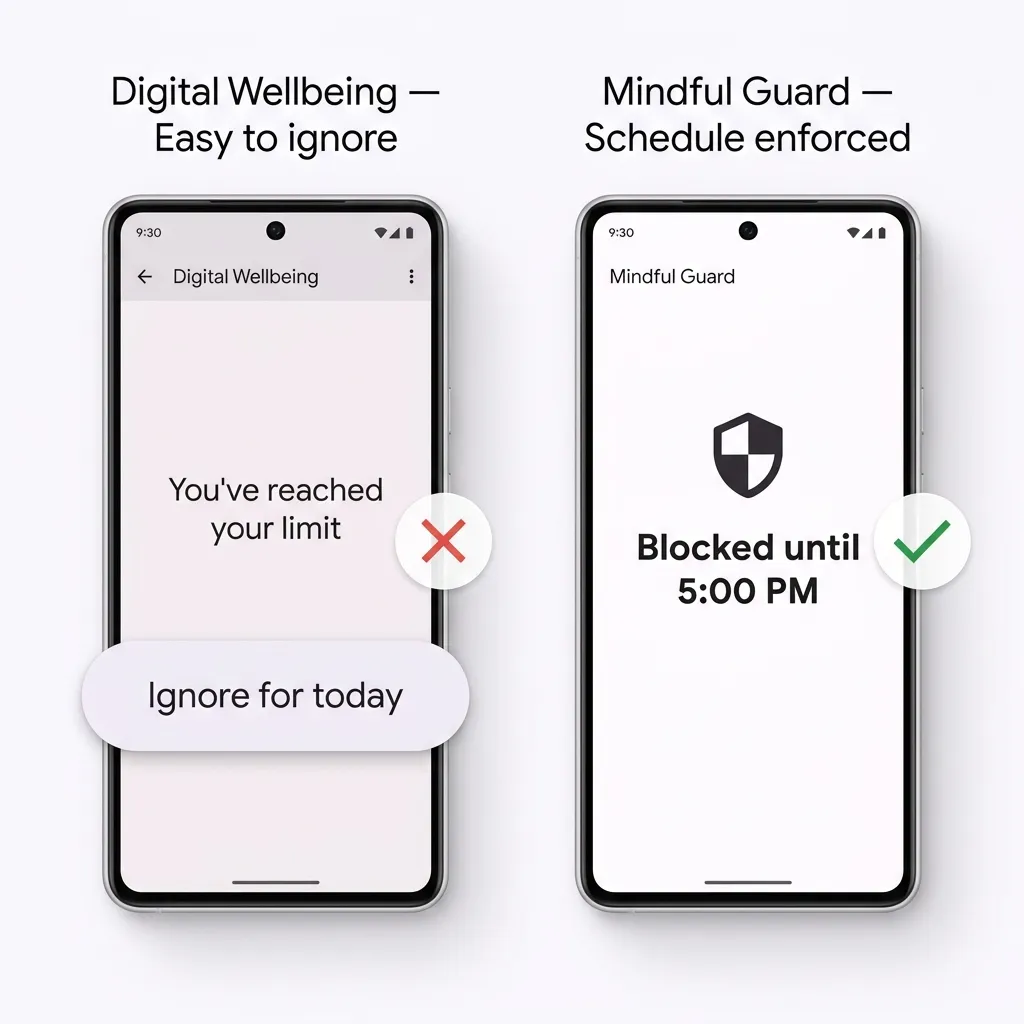
You’ve tried the 30-minute daily limit in Digital Wellbeing. You tapped “Ignore for today” before noon.
You’ve tried just being more disciplined. That lasted until Tuesday.
None of it worked — not because you lack willpower, but because you were using the wrong tool for the job. Willpower is a depletable resource. Instagram’s engineering team is not. Every notification, every autoplay video, every infinite scroll is the output of thousands of hours of behavioral psychology research designed to keep you in the app. You cannot out-discipline a system built to defeat discipline.
The only reliable solution is removing the decision entirely. Not permanently — just during the hours when your time is worth the most.
That’s what schedule-based blocking does. Your social media apps are simply unavailable from 9 AM to 5 PM. No temptation screen, no “just one quick check,” no willpower required. At 5 PM, everything unlocks automatically. You didn’t quit social media. You just made it structurally unavailable when it matters most.
This guide walks you through setting it up on Android in under 5 minutes using Mindful Guard.
Why Schedule-Based Blocking Works When Everything Else Fails
Before getting into the setup, it’s worth understanding why this approach is different — because if you’ve tried app blockers before and uninstalled them, this might feel like more of the same.
Most app blockers fail for one of two reasons:
1. They’re too easy to override. Digital Wellbeing’s time limit shows a dismiss button. Many blockers have a “pause for 15 minutes” option. Any friction that can be bypassed with one tap will be bypassed — especially when your dopamine system is already activated and looking for the path of least resistance.
2. They block too aggressively. Block every app permanently, and the blocker becomes the enemy. You uninstall it, restore everything, and feel worse than when you started.
Schedule-based blocking solves both problems. It’s a hard block — no override option during your defined window — but it’s also a bounded block. You know exactly when it ends. That predictability is psychologically important: it doesn’t feel like deprivation, it feels like a rule with a clear end point, which your brain is much more willing to accept.
The neuroscience here is straightforward. Habit loops are triggered by cues — in this case, the cue is boredom or stress, and the routine is opening a social app. When the app is structurally unavailable, the routine is broken before it starts. After a few days, the brain stops initiating the loop because it has learned that the reward isn’t accessible. The craving diminishes not through willpower, but through repeated interrupted cues.
How to Block Social Media During Work Hours on Android
Step 1: Download Mindful Guard
Install Mindful Guard from the Google Play Store. It’s free to download and requires no account, no sign-up, and no email address.
Step 2: Grant Usage Access
When you open the app for the first time, it will ask for Usage Access permission. This is how Mindful Guard detects which app is in the foreground so it can enforce blocks.
To grant it: go to Settings → Digital Wellbeing & Parental Controls → Usage Access, find Mindful Guard in the list, and toggle it on.
This is the only permission the app needs. It does not request location, contacts, camera, microphone, or any other sensitive permission. All processing happens on-device.
Step 3: Create Your Work Hours Schedule
Tap Schedules → New Schedule and fill in the following:
- Schedule name: Work Hours
- Start time: 9:00 AM
- End time: 5:00 PM
- Active days: Monday, Tuesday, Wednesday, Thursday, Friday
You can adjust these times to match your actual working hours. The point is to define a window where your focused work happens — and block distractions for exactly that window, nothing more.
Step 4: Select the Apps to Block
Tap Add Apps and choose the ones that cost you the most time during work hours. If you’re not sure where to start, these are the most common culprits:
- TikTok
- YouTube (or specifically YouTube Shorts if your version supports granular blocking)
- X (Twitter)
- Snapchat
A useful test: open your Android screen time report and sort by daily average. The top three or four non-work apps are your blocklist. Don’t over-block — adding 15 apps to the list makes the schedule feel like a cage, which increases the urge to uninstall.
Step 5: Set Your Block Mode
Mindful Guard gives you two options:
Standard Mode — When you try to open a blocked app, a block screen appears with an option to request a short override window. Useful if your work occasionally requires social media access (community management, social marketing, etc.).
Strict Mode — No override. The block screen is the end of the road until your schedule expires. Recommended if you’ve noticed yourself justifying overrides that weren’t really necessary.
If this is your first time setting up a system like this, start with Standard Mode. Give it a week. If you’re using the override more than once or twice a day, switch to Strict.
Step 6: Activate the Schedule
Tap Save, then toggle the schedule to Active.
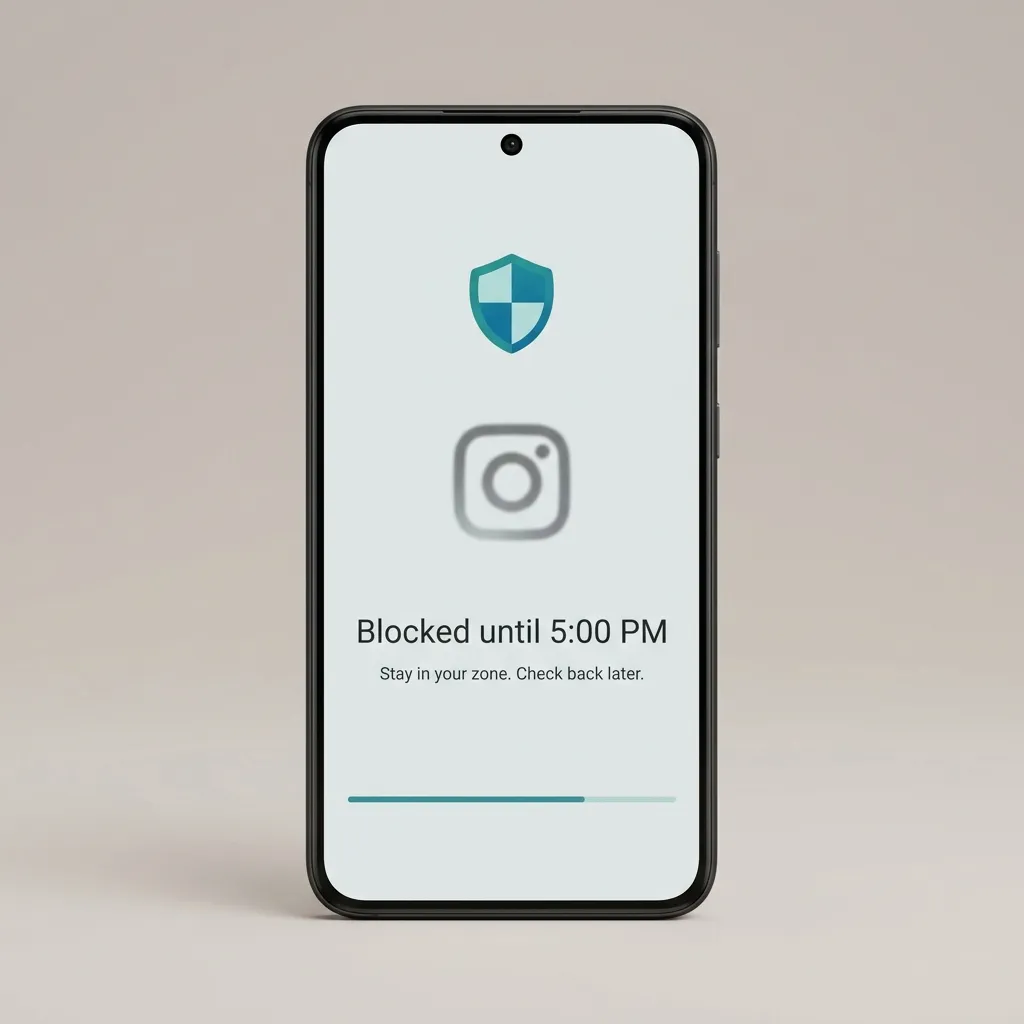
To verify it’s working: try opening one of your blocked apps right now. You should see the Mindful Guard block screen immediately. Come back at 5 PM — it opens normally without any action from you.
That’s the entire setup.
Which Apps to Block — and Which to Leave Alone
Being strategic about your blocklist is just as important as setting it up. Too narrow and it doesn’t help. Too broad and it feels punishing.
Here’s a simple framework:
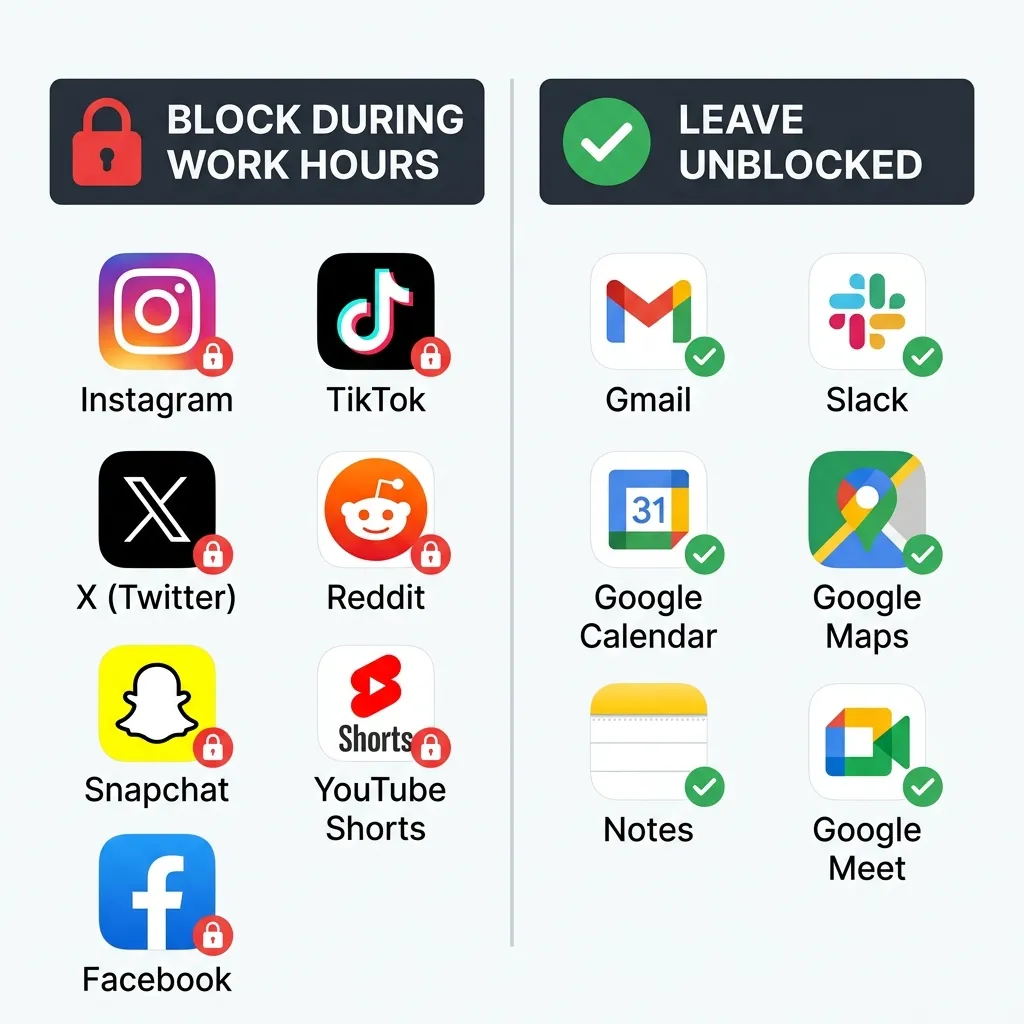
Block anything that offers infinite scroll or autoplay. These are the highest-risk apps because there’s no natural stopping point. One video leads to another. One post leads to a feed. The session length is determined by the algorithm, not by you.
Block anything that creates social anxiety loops. Checking how many likes your post got, refreshing to see if someone replied, reading comments on a post you’re tagged in — these are compulsive checking behaviors, not intentional actions. Blocking removes the trigger.
Don’t block tools you need to do your job. Gmail, Slack, Google Meet, your project management app — these stay open. The goal is focused work, not a digital fast.
Don’t block everything at once. If your work involves social media management, block the personal accounts and leave the work ones. If you use Reddit for professional research, consider whether you can access it through a browser with a time limit instead.
What to Expect in the First Week
The first few days feel different from what most people expect. Here’s the honest timeline:
Day 1–2: Phantom reaching. You’ll instinctively tap the spot on your home screen where Instagram used to be, or unlock your phone with no clear intention and find nothing to open. This feels mildly uncomfortable. That discomfort is the habit loop failing to complete — which is exactly what you want.
Day 3–4: The reaching decreases. Your brain has started updating its expectation. You stop automatically navigating toward blocked apps because you’ve learned they won’t open. Some people notice they’re picking up their phone less overall during this phase.
Day 5–7: Longer focus sessions without trying. The most commonly reported outcome. Not “I forced myself to focus for two hours” — more like “I looked up and an hour had passed without me reaching for my phone.” The difference is that distraction was removed at the system level, not resisted at the cognitive level.
This isn’t a dramatic transformation. It’s a quiet one. The work gets easier not because you became more disciplined, but because the path of least resistance changed.
Stack Your Schedules for Maximum Impact
The work hours block is the foundation. Once it’s running smoothly, consider adding a second schedule to protect your mornings.
The first 60–90 minutes after waking up are when your prefrontal cortex — the part of your brain responsible for focus, planning, and rational decision-making — is at its most active. Opening social media during this window doesn’t just waste time; it sets the cognitive tone for the entire morning by training your brain to expect short dopamine loops before any sustained work has happened.
A simple morning block looks like this:
- Morning block: 6:00 AM – 8:00 AM
- Work block: 9:00 AM – 5:00 PM
- Weekends: Off (or a lighter morning-only block)
Three minutes to configure. It protects the two windows in your day where distraction does the most damage.
The Deeper Point: Systems Beat Willpower Every Time
There’s a version of productivity advice that treats discipline as a skill you develop through effort — that if you just try harder and want it more, you’ll stop getting distracted. This advice is not only wrong, it’s counterproductive, because it makes every failure feel like a personal character flaw rather than a system design problem.
The more accurate framing: your environment determines your behavior more than your intentions do. When the path of least resistance leads to focused work, most people do focused work. When it leads to Instagram, most people open Instagram.
Schedule-based blocking changes the path of least resistance during the hours that matter. It’s not a motivational tool. It’s an architectural one. And unlike motivation, architecture doesn’t have bad days.
Ready to protect your work hours? Mindful Guard is free, fully on-device, and takes less than 5 minutes to set up. Zero data collected. Zero subscriptions required.