“I’ll come back to this later.”
That’s what your visitor thinks when they close your product page without buying. And for most of them, “later” never comes. They get distracted, forget your URL, or find a similar product somewhere else.
The truth is, most people don’t procrastinate because they don’t want the product. They procrastinate because they don’t feel any reason to act right now. There’s no deadline. There’s no sense that waiting is risky.
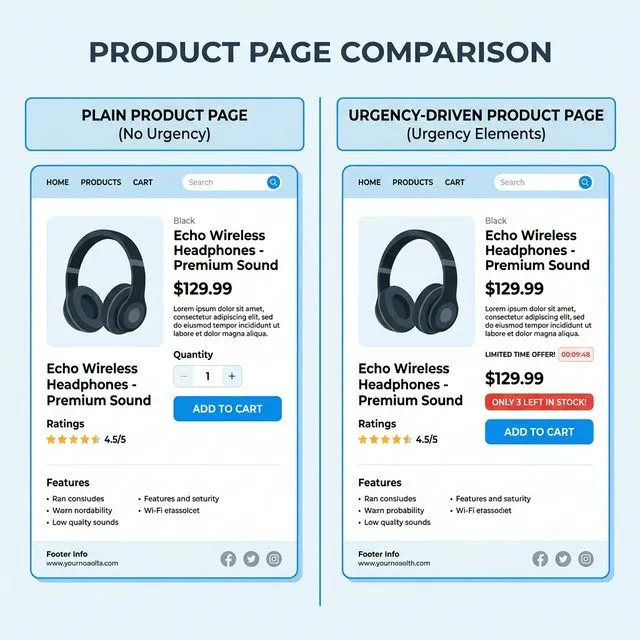
A low stock alert changes that.
When someone sees “Only 4 left in stock” on a product they were already considering, their brain does something predictable: it shifts from “do I want this?” to “what happens if I wait and it’s gone?”
That’s not manipulation. That’s just showing them accurate information they didn’t have before. And it’s one of the highest-impact, lowest-effort things you can add to your Shopify store.
The Psychology Behind “Only X Left”
There’s a well-studied principle in human psychology called loss aversion — we feel the pain of losing something about twice as strongly as we feel the pleasure of gaining something equivalent.
What this means for your store: the fear of missing out on a product someone already likes is a stronger motivator than the desire to get it. A visitor browsing your store is experiencing mild desire. The same visitor seeing “Only 2 left” is experiencing mild fear. Fear converts better.
The important caveat: this only works when it’s true. Fake scarcity is one of the fastest ways to lose a customer’s trust permanently. If your countdown always says “3 left” no matter how much inventory you have, savvy shoppers will notice — and they’ll tell other people.
When it’s real, though, it’s one of the most effective conversion tools you have.
How to Add Low Stock Alerts with FomoGen
Here’s the full setup, step by step.
Step 1: Install FomoGen
If you don’t have FomoGen yet, go to the Shopify App Store and install it — it’s free. If it’s already installed, open the app from your Shopify admin.
Step 2: Go to Scarcity & Urgency
In the FomoGen dashboard, click Scarcity & Urgency in the left sidebar. Then click Low Stock Alert → Create New Alert.
Step 3: Set Your Inventory Threshold
This is the number below which the alert appears.
- For most stores: 10 units
- For fast-moving products: 15–20 units
- For slow-moving or premium items: 3–5 units
Think about it from the customer’s perspective. “Only 10 left” feels urgent. “Only 47 left” doesn’t. Calibrate the threshold so the alert only shows when the urgency is genuine.
Step 4: Write Your Alert Message
FomoGen uses a simple template where {count} gets replaced with the actual inventory number:
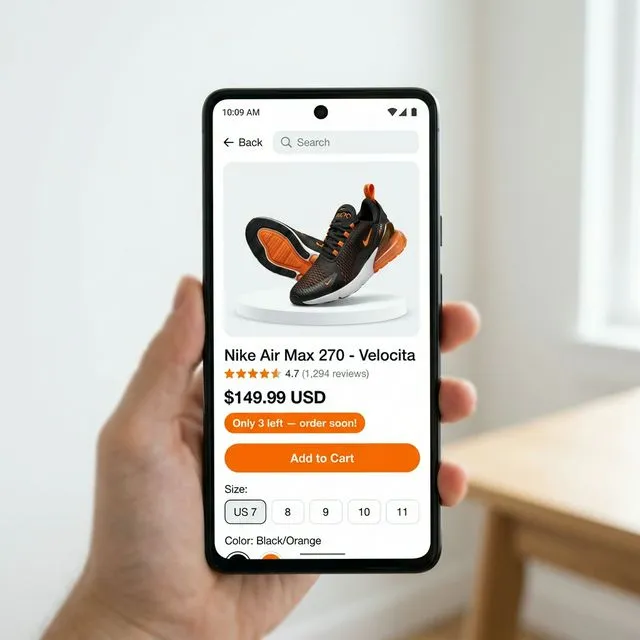
Recommended message: ”⚡ Only {count} left — order soon!”
Or more casual: “Almost gone — only {count} remaining.”
Keep it short. The number does most of the work. Don’t write a paragraph.
Step 5: Choose Where It Shows
Select Product page as the primary placement. You can also enable it in the Cart drawer — this is a smart placement because it catches customers who’ve already added the item and might still be debating whether to check out.
Step 6: Choose Which Products to Apply It To
You have two options:
- All products: The alert shows on every product whenever inventory drops below your threshold. Good if you manage a large catalog.
- Specific products: You handpick which products get the alert. Good for your best-sellers or products you’re actually trying to move fast.
Step 7: Style and Save
Pick your alert color (orange or red typically performs better than neutral gray — warm colors signal urgency naturally), then hit Save and toggle to Active.
Open one of your product pages in a new tab. If that product has inventory below your threshold, you’ll see the alert immediately.
Getting the Threshold Right: Some Examples
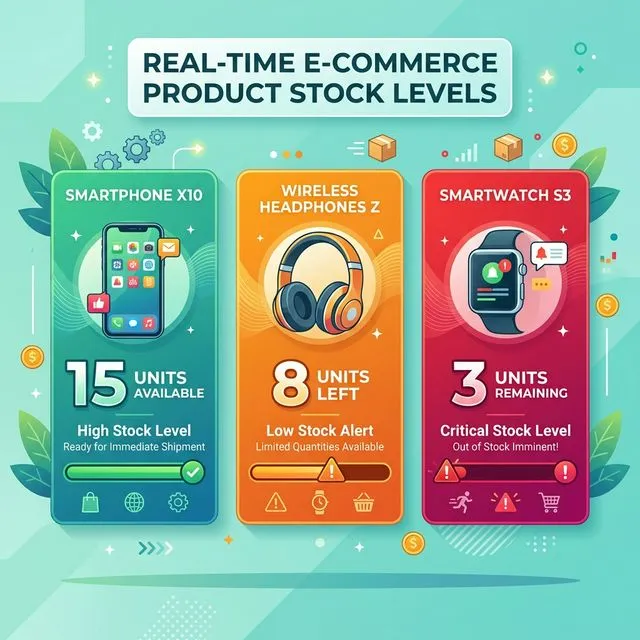
Different products need different thresholds. Here’s a practical guide:
High-volume everyday products (e.g. phone cases, candles, basic clothing): Set the threshold at 15–20 units. These move fast, and showing “Only 18 left” on a product that sells 50 units a day is genuinely useful information for a customer.
Mid-volume products (e.g. skincare, accessories, niche gifts): Set the threshold at 8–12 units. This is the most common setup. The urgency is real, and the number is low enough to feel meaningful.
Low-volume premium products (e.g. handmade items, limited editions, jewelry): Set the threshold at 3–5 units. For items that you genuinely only stock a few of at a time, even “Only 5 left” is a significant signal. These products often benefit most from the alert.
Dropshipping: If you’re dropshipping and don’t control inventory directly, use the alert carefully and only with products where you’re confident in the supplier’s actual stock levels. Showing “Only 2 left” when the supplier has 500 is the kind of thing that creates refund requests and chargebacks.
What NOT to Do
Don’t set the threshold so high that it’s always showing. If your low stock threshold is 50 units and you rarely have more than 60, customers will always see a scarcity warning. After a few visits, it starts to look fake — even when it isn’t. The credibility of the alert depends on it being the exception, not the rule.
Don’t use alarming language for mid-sized stock. “ONLY 12 LEFT — ALMOST SOLD OUT — ACT NOW!!!” for a product you restock weekly is dishonest in spirit, even if the number is accurate. Keep the tone calm and factual.
Don’t show it for every product on every visit. If a customer browses 10 products and every single one shows a low stock warning, they’ll figure out it’s a tactic rather than a real signal. Be selective.
Combine With Social Proof for the Full Conversion Stack
A low stock alert answers: “Should I act now?” — yes, because there’s not much left.
A sales notification popup answers: “Is anyone else buying this?” — yes, other people just bought it.
A sticky add-to-cart bar answers: “How do I buy?” — by tapping the button that’s always right there.
When you have all three running together, you’ve built a conversion environment where every hesitant visitor has their doubts addressed one by one. It doesn’t feel pushy when it’s done right — it feels like a well-run store.
FomoGen has all three in a single install. The free plan lets you run one campaign of each type, which is enough to get started and see results before deciding whether to upgrade.
Set up low stock alerts today. FomoGen syncs with your real Shopify inventory to show genuine scarcity signals — no fake timers, no made-up numbers.
Related: Now that you’ve got urgency covered, read how to add a free shipping bar to your Shopify store to give customers the final nudge they need to top up their cart and complete the purchase.